How to Report a Google Review as the Business Owner (Both Routes, and the Reason to Pick)
2026-09-24
You own the business, there is a review on your profile that crosses a line, and you want it reported properly the first time. The account you report from, the route you take and the reason you pick all matter more than most owners realise, because there is no text box at this stage. You get one click to say what is wrong.
Here are both routes, the screens you will see on each, and how to choose the reason.
Sign in as the business first
Anyone can report a Google review. A report from the account that owns or manages the Business Profile carries the business's standing, and that account is the only one that can later check the report's status and lodge an appeal. So before anything else, sign in to it.
If you are not sure which account that is, open your Business Profile settings and look at who is listed as owner and manager. If a staff member or an agency set the profile up on their own email, get yourself added as an owner before you start. A report from a personal account that is not on the profile is just a report from a member of the public.
Before you report
A few minutes of preparation here saves weeks later.
- Screenshot the review. Full text, star rating, reviewer name and date. If it is edited or deleted after you report, you still have what you reported.
- Write down the exact phrase. Not a summary, the words themselves: the line that threatens, publishes a home address or calls you criminals. That phrase decides the reason you pick now and the argument you make if you appeal later.
- Calm down any reply you posted in the heat of the moment. If you answered the review angrily, edit your reply before you report. A calm reply costs you nothing, and an angry one is the first thing every future customer reads under the review.
Also check the review is worth reporting. From more than 900 negative reviews we have read, about one in seven negative Google reviews breaks Google's own rules. A review from a real customer describing a real visit stays, however harsh. The ones that come down contain specific words that cross a line.
Route 1: the Reviews Management Tool
This is the route we use for clients and the one to try first. The Reviews Management Tool is Google's own owner tool at support.google.com/business/workflow/9945796. You confirm the managing email, pick the business, choose Report a new review, find the review in a list with a Report link beside each one, and pick one of eight reasons.
It is the better route for two reasons. Its list of reasons is the longest, and it is the only place you can later check the status of a report and lodge an appeal. We walk through every screen in Google's Reviews Management Tool explained.
Occasionally a review that is live on your profile does not show up in the tool's list. That is when you use route 2.
Route 2: from Google Search, the listing or the Maps app
On a computer, from Google Search
- Signed in as the owner or manager, search Google for your business name. Going to business.google.com takes you to the same place. A "Your business on Google" panel appears above your listing, with buttons to edit the profile, read reviews and more.
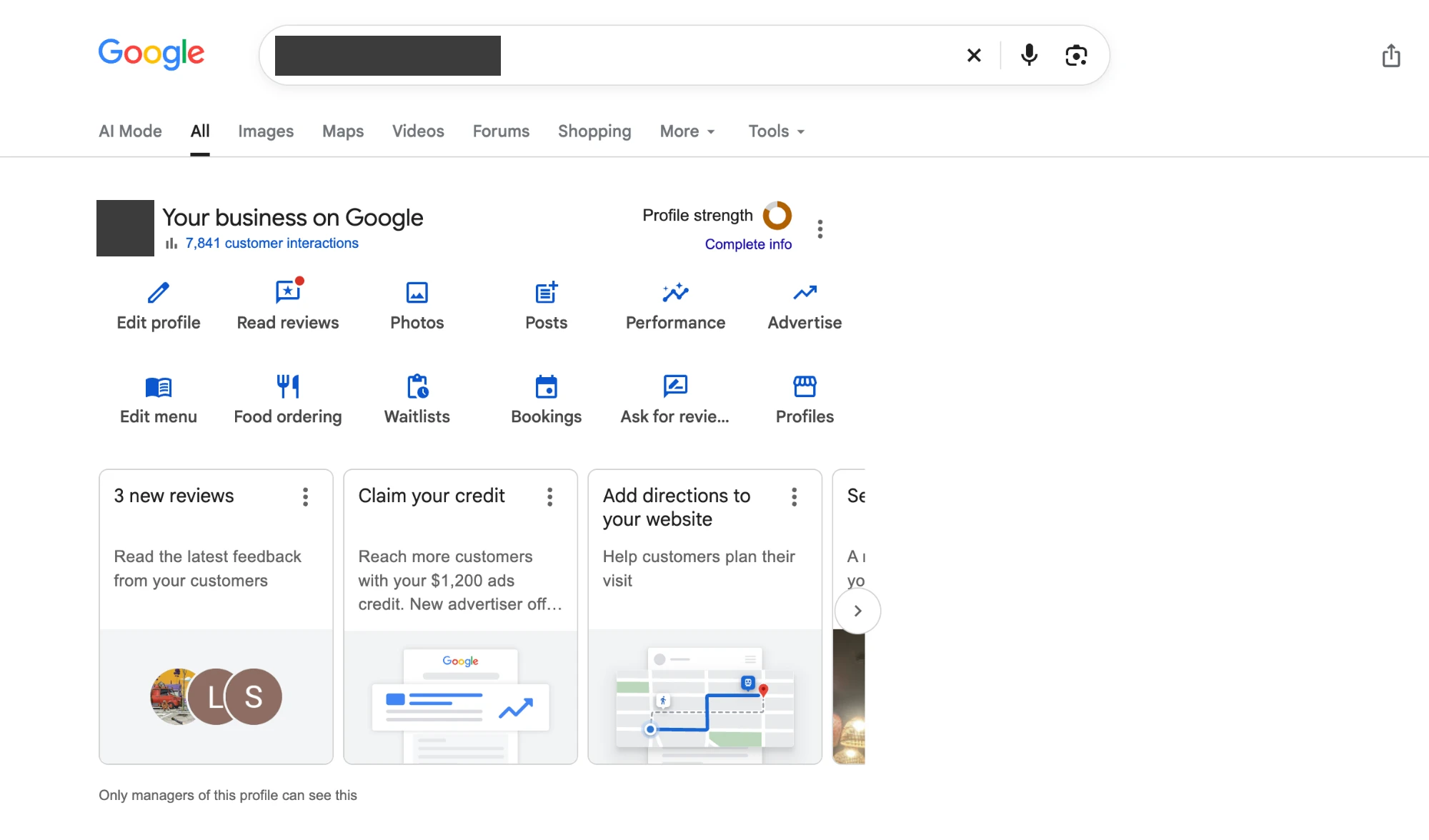
- Click Read reviews. A panel opens with every review on your profile, and a small report icon (a circle with an exclamation mark) at the right of each one.
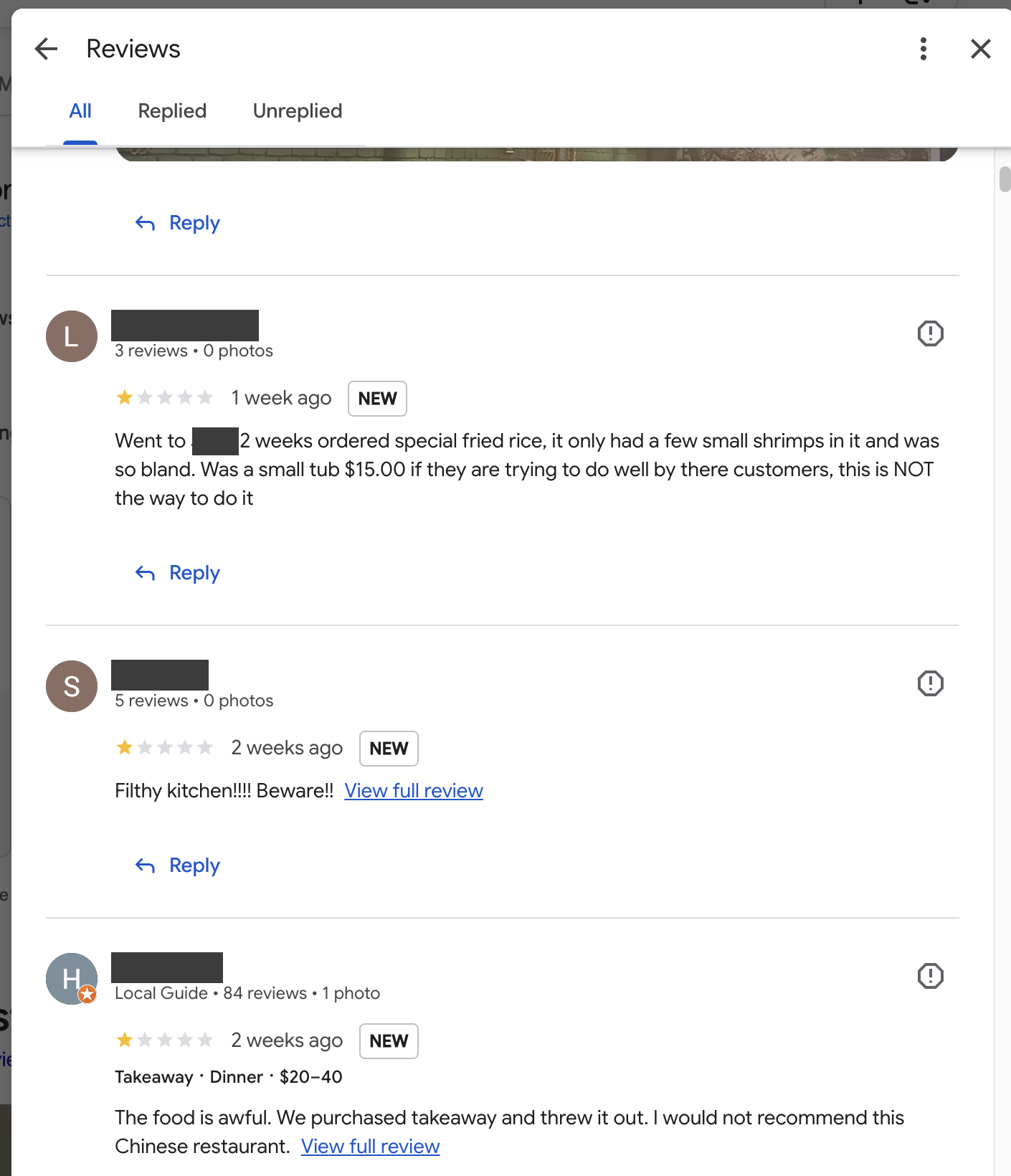
The report icon is easy to miss. It sits at the right of every review.
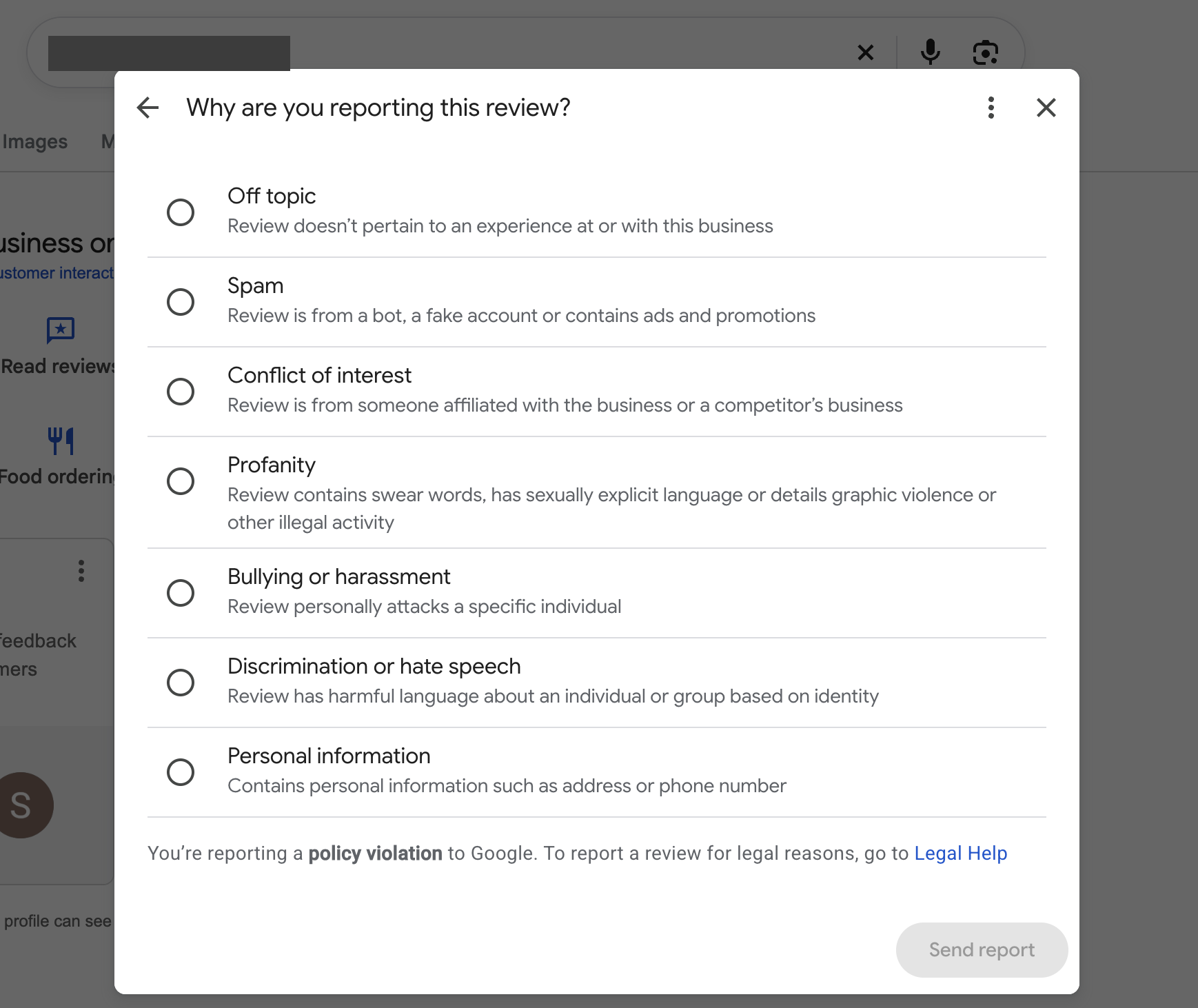
- Click the report icon on the review you are filing against.
- Pick one reason. From this panel you get seven: the tool's list without Harmful.
From the public listing or on your phone
On Google Maps in a browser, or in the reviews on the public listing, click the three dots on the review, then Report review. In the Google Maps app, signed in to the same account, search your business, tap Reviews, tap the three dots on the review, then Report review.
These public screens show a shorter list of six: Low quality information, Profanity, Harmful, Bullying or harassment, Discrimination or hate speech, and Personal information.
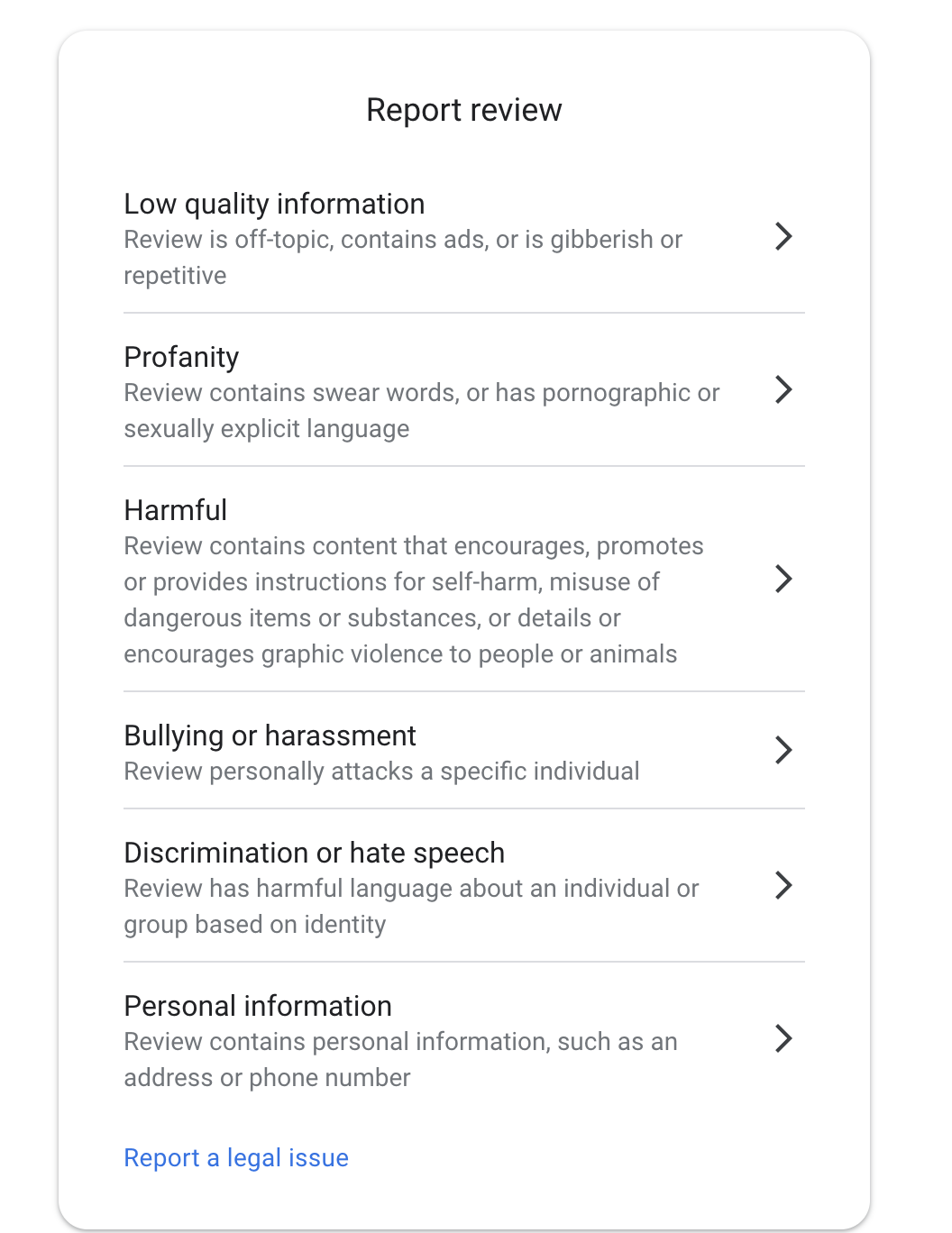
The one to understand is "Low quality information". On this screen it stands in for three separate reasons in the tool: Spam, Off topic and Conflict of interest. It still gets the review into the system, but it tells Google less about what you are pointing at. Use this route only when the other two will not show you the review.
How to choose the right reason
The reason is the only thing you get to say, so it has to fit. Match the reason to the exact phrase, not to how the review makes you feel. Every bad review feels harmful, and that is not what the Harmful button is for. Look at the words you wrote down and ask which rule they break.
A few pairings show the idea:
- A review that publishes someone's home address or mobile number is Personal information.
- A review that calls your business criminals, stated as fact, goes under Spam in the tool. It is a Misrepresentation case, and there is no button with that name. (There is more on this in removing a review that calls your business a scam.)
- A review that threatens to hurt someone is Bullying or harassment. A threat to sue, complain to a regulator or "tell everyone" is not a breach at all.
Those are the easier ones. The trickier cases, such as a reviewer who admits they never came in, a review meant for a different business, or a rant that never describes a visit, each have a right answer too, and it differs between the tool and the public list. Suspected fakes bring their own problems, which we cover in how to report a fake Google review.
The full mapping for all 12 breaches Google acts on is a one-page cheat sheet in The Google Review Removal Playbook, alongside the policy name to use if the report is declined and you appeal.
What happens after you report
- No case number. A first report does not come with one. Note the date, the reason you picked and the exact phrase.
- The decision comes by email to the account that made the report. Check the spam folder as well as the inbox.
- Timing varies. We have seen decisions in a day and in several weeks.
- In the Reviews Management Tool, under Check the status of a review I reported and appeal options, each report shows one of three statuses: Decision pending, Report reviewed, no policy violation, or Escalated. A removed review has no status. It simply disappears from your profile.
The reviewer is not told who reported them. We cover the rest of the process, including what each email means, in what happens when you report a Google review.
"No policy violation" is not the end of the road. It is the status that opens the appeal, which is where most of our cases are won. Our guide to what to do after "no policy violation" takes it from there.
What not to do
- Do not report the same review twice while a report is open. It does not jump the queue or add weight. Report, wait for the decision, then take the next step.
- Do not ask friends, family or staff to report it too. It feels like strength in numbers. Coordinated reporting is treated as manipulation, and it puts your own profile at risk.
- Do not report every negative review. Reports on reviews that break no rule waste your time and bury the ones that do. Those reviews get a calm reply instead, and our negative Google review reply templates post shows what a good one does.
- Do not argue with the reviewer while the report is open. Nothing you write under the review changes the decision, and a heated exchange stays public long after.
Report your strongest review today from the owner account, write the date beside the exact phrase, and let the decision email tell you the next move.
Report it right the first time
Get the full breach-to-reason cheat sheet for both routes, and a ready-to-fill appeal for each of the 12 breaches if the report is declined.
Get the Playbook · $99Several locations or a group? Talk to us about a managed service · Popular locations: Sydney · Melbourne · Brisbane · Perth · Adelaide · Gold Coast · all locations