Google's Reviews Management Tool: What It Is, Where It Is, and Why You Should Report From There
2026-09-24
You have a review on your profile that crosses a line, and you have heard there is a proper way to report it that goes further than the flag in Google Maps. There is. It is called the Reviews Management Tool, Google built it, and it is the screen we use every week when we file reports and appeals for clients.
Here is what the tool is, how to find it, each screen you will see, and why it should be home base for every report you make.
What the Google Reviews Management Tool is
The Reviews Management Tool is Google's own workflow for Business Profile owners and managers. It lives at support.google.com/business/workflow/9945796, and searching "Google Reviews Management Tool" brings it up. It is not a third-party product, an app you install or a paid service. There is nothing to sign up for.
The name trips people up. Search "google business reviews management tool" and you will find plenty of software companies selling dashboards for replying to reviews across platforms. Those are something else. The tool in this post is the free one Google made for one job: handling reports on reviews of your own business.
It only works for the account that owns or manages the profile. Sign in with a personal Gmail that is not on the profile and the tool has nothing to show you. Check who is listed as owner and manager in your Business Profile settings before you start.
What it does that Google Maps cannot
Anyone can report a review from the public listing or the Maps app. The tool gives an owner three things those screens do not.
- Every review on your profile in one list, each with a Report link. No scrolling the public listing, no hunting for three dots.
- The status of every report you have made. The public screens take your report and leave you in the dark. The tool tells you whether a decision is pending, whether the report was declined, and whether it has been escalated.
- The appeal. When a report comes back "no policy violation", the tool is the only place to lodge an appeal. There is no appeal button on Maps, on Search or in the app.
That third point matters most. The appeal is where most of our cases are won, because it is the first time you get to explain in writing why the words break a rule. You cannot reach it without the tool, so you may as well start there.
How to report a review in the tool, step by step
There are five screens. Once you have done it once, each report takes about two minutes.
- Confirm the managing email. The first screen asks for the email address of the account that manages the profile. Use the owner or manager account, and make sure you are signed in to it in the same browser.
- Pick the business. Every profile that account manages is listed. If you have several locations, each appears separately, so check the suburb before you click.
- Choose what you want to do. There are two options: Report a new review and Check the status of a review I reported and appeal options. For a first report, choose the first.
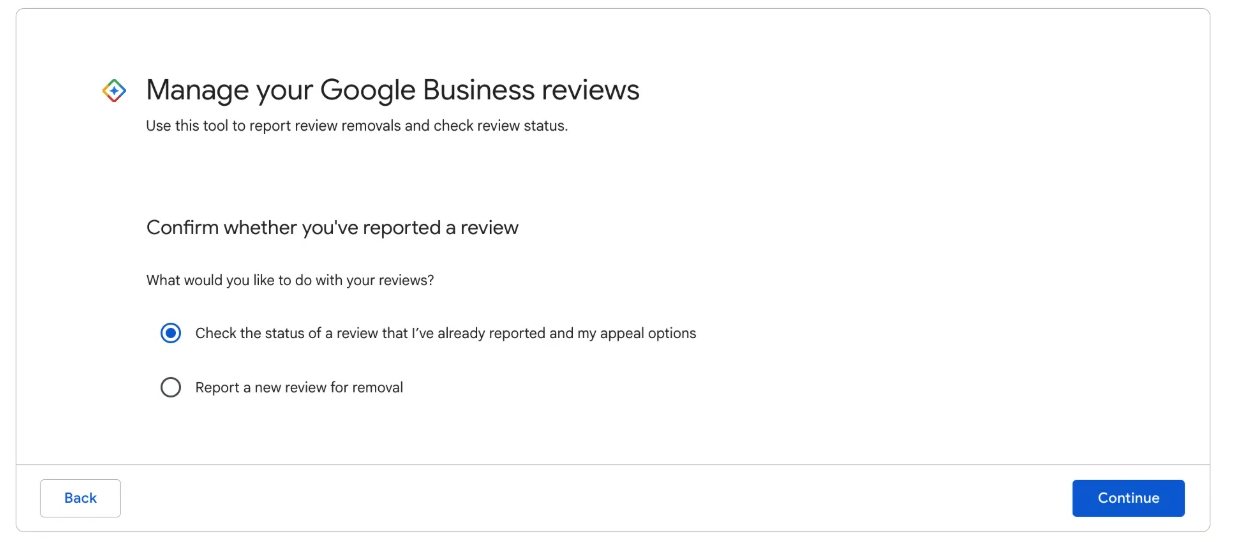
The fork in the road. You will come back for the second option later.
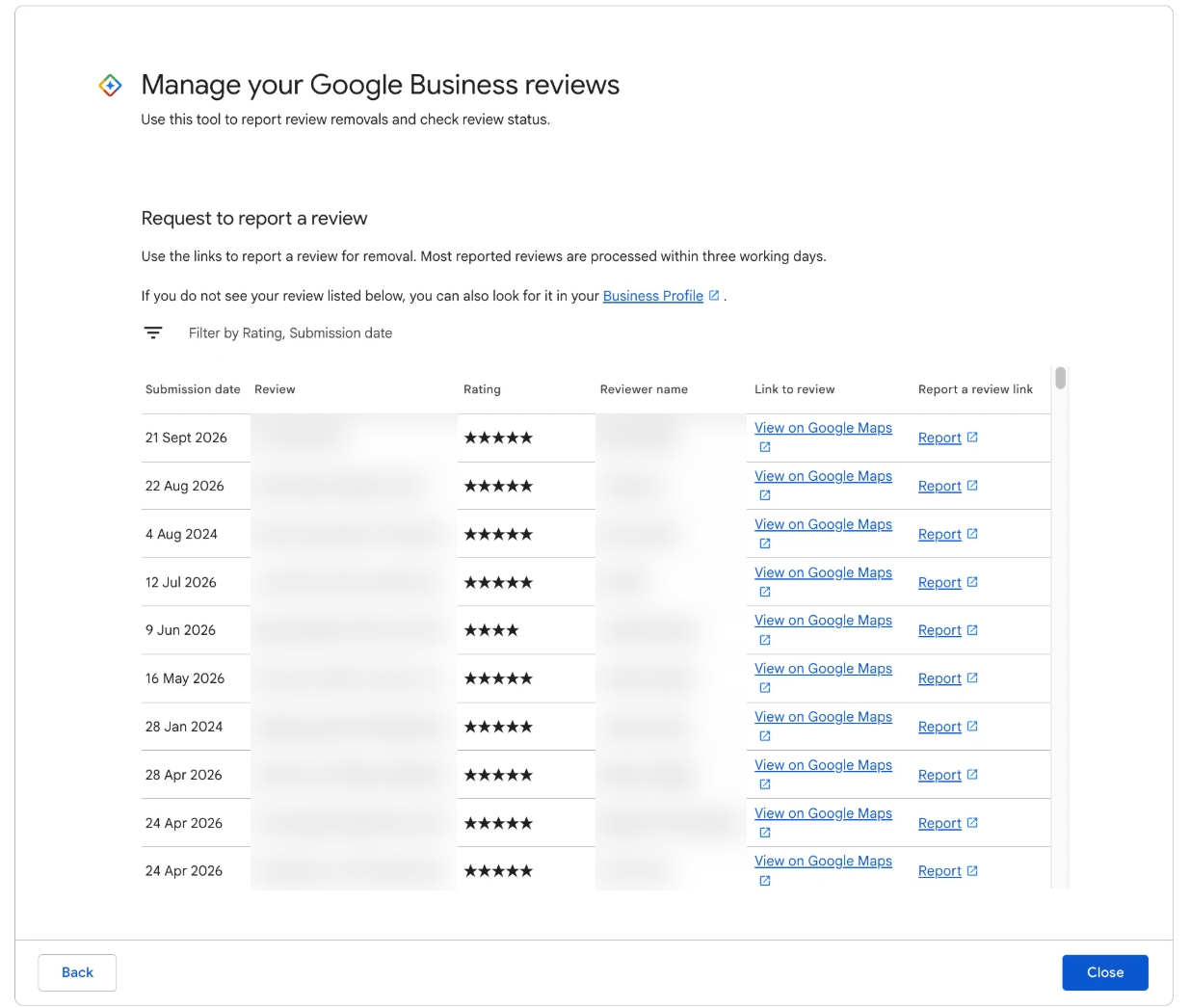
- Find the review in the list. Your reviews appear with a Report link beside each one. Click Report on the review you are filing against.
- Pick one reason. A dialog of reasons opens. There is no text box at this stage, so the reason you choose does all the talking.
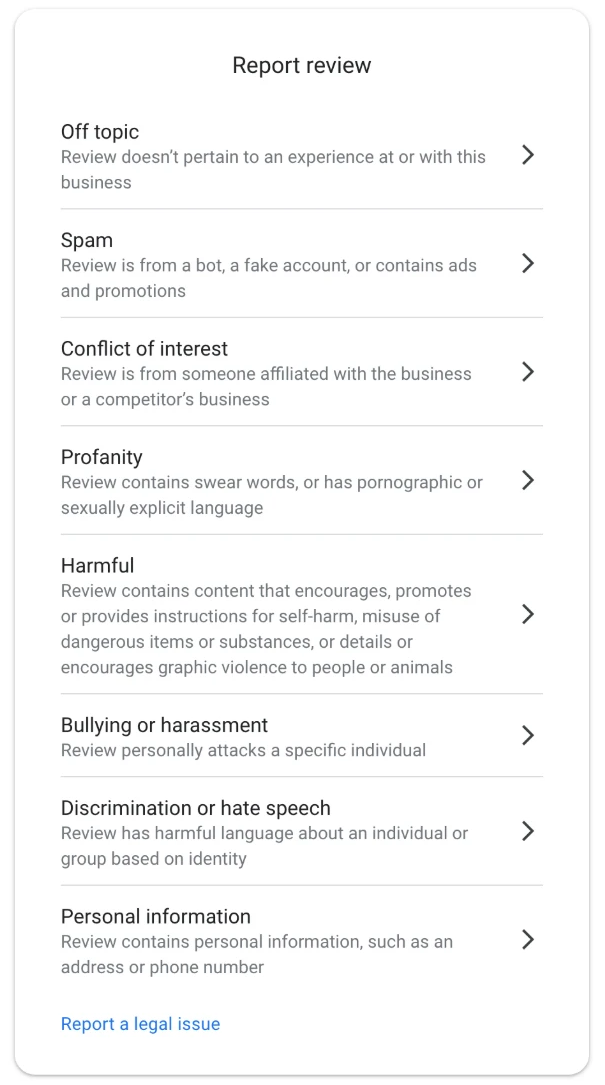
The tool's reason list. Choose one, then submit.
Take a screenshot of the review before step 4. If the reviewer edits it after you report, you still have the words you reported.
Occasionally a review that is live on your profile does not appear in the tool's list. When that happens, report it from Google Search instead, as we show in how to report a Google review as the business owner.
The eight reasons, and why other screens show fewer
Inside the tool you get eight reasons:
- Off topic
- Spam
- Conflict of interest
- Profanity
- Harmful
- Bullying or harassment
- Discrimination or hate speech
- Personal information
That is not the list every owner sees. Report the same review from the "Your business on Google" panel on Search and you get seven, with Harmful missing. Report it from the public listing or the Maps app and you get six, where one catch-all, "Low quality information", stands in for Spam, Off topic and Conflict of interest. Google changes these lists from time to time, which is one more reason to work from the tool, where the list is longest.
Notice what is missing from every list: the names of Google's actual content policies. There is no button for Misrepresentation or Fake Engagement. A review that states you committed fraud, or a reviewer who admits they never came in, still has a right reason to pick, but it is rarely the one an owner would guess. Picking the reason that matches the exact phrase, rather than how the review makes you feel, is what gets a report read the way you intend.
The Google Review Removal Playbook has a one-page cheat sheet with the right reason for each of the 12 breaches Google acts on, for both the tool's list and the shorter public one.
How to check the status, and what the three statuses mean
Come back to the tool a few days after you report, pick the same business, and choose Check the status of a review I reported and appeal options. Every review you have reported is listed with one of three statuses.
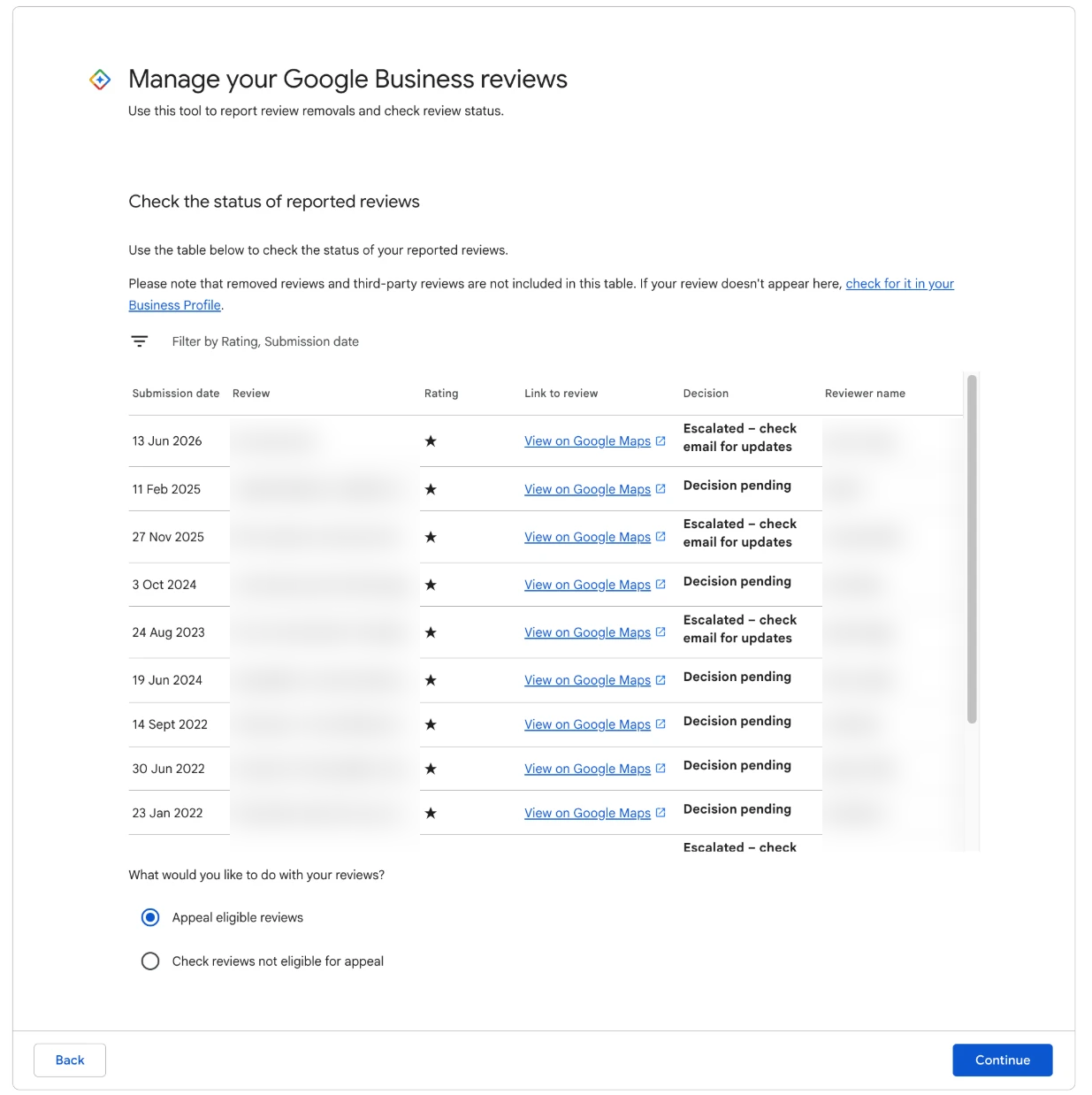
- Decision pending. Google has the report and has not decided. Leave it alone. Reporting it again does not speed anything up.
- Report reviewed, no policy violation. The first pass said no. This is not the end: it is the status that makes a review eligible for appeal.
- Escalated. A person is looking at it. This can take weeks, and there is nothing to do but wait.
There is no "Removed" status. A review that comes down simply disappears from your profile and from the list. Each decision is also emailed to the account that made the report, so check that inbox, spam folder included. We decode each of those emails in what happens when you report a Google review, and timing is covered in how long Google takes to remove a review.
The appeal lives here too
When a report shows "no policy violation", the same status screen tells you whether that review is eligible for appeal. Select it and you reach a short form with two fields that matter: which policy the review breaks, and why. Each review gets one appeal and the decision on it is final, so it is worth building properly. Our guide on how to appeal a Google review decision walks through the form, and what to write in a Google review appeal covers the argument itself.
Since July 2026 many owners have hit a wall at this step. Instead of the appeal form, the tool shows "Error accessing the workflow. Please escalate the issue." It is a fault on Google's side, not a flag on your account, and it tends to clear. Come back later, try an incognito window, select one review at a time, and if it still fails after several days, open a Business Profile support case. The full set of workarounds is in our post on the "Error accessing the workflow" message.
How to pace your reports
The tool makes it easy to report twenty reviews in ten minutes. Resist that. From more than 900 negative reviews we have read, about one in seven negative Google reviews breaks Google's own rules. The rest are harsh, unfair or wrong, and still allowed.
- Strongest first. Start with the reviews where you can point to the exact words that break a rule: a threat, a slur, a home address, swearing aimed at a named person.
- About five at a time. A handful of well-aimed reports does better than a wave of hopeful ones, and it keeps your tracking manageable.
- One step per review. Report, wait for the decision, then decide the next move. Do not report the same review again while the first report is open.
- Write it down. Note the date, the reason you picked and the exact phrase for each report. When a decline arrives, that note is the start of your appeal.
The reviews that do not break a rule go in a different pile. They get a calm, specific reply, which starts working the same day; our negative Google review reply templates post shows what a good one does.
Bookmark support.google.com/business/workflow/9945796 in the browser where you are signed in as the owner, and the next report starts from the right screen.
Know which reason to pick every time
The playbook's one-page cheat sheet matches all 12 breaches to the right reason in the tool, plus the appeal templates for when a report is declined.
Get the Playbook · $99Several locations or a group? Talk to us about a managed service · Popular locations: Sydney · Melbourne · Brisbane · Perth · Adelaide · Gold Coast · all locations