'Error Accessing the Workflow': The Google Review Appeal Bug and How to Get Around It
2026-09-24
You went to appeal a declined Google review, clicked through the Reviews Management Tool, and got a short line of text instead of a form: "Error accessing the workflow. Please escalate the issue." There is no escalate button, no explanation and no case number. Here is what the message means, and how we still get appeals lodged.
The exact message, and where it appears
The error shows up at the appeal step of the Reviews Management Tool. You sign in, confirm your email, pick the business, and choose Check the status of a review I reported and appeal options. Where you expect the list of reviews eligible for appeal, or the appeal form once you have ticked some, you get this instead:
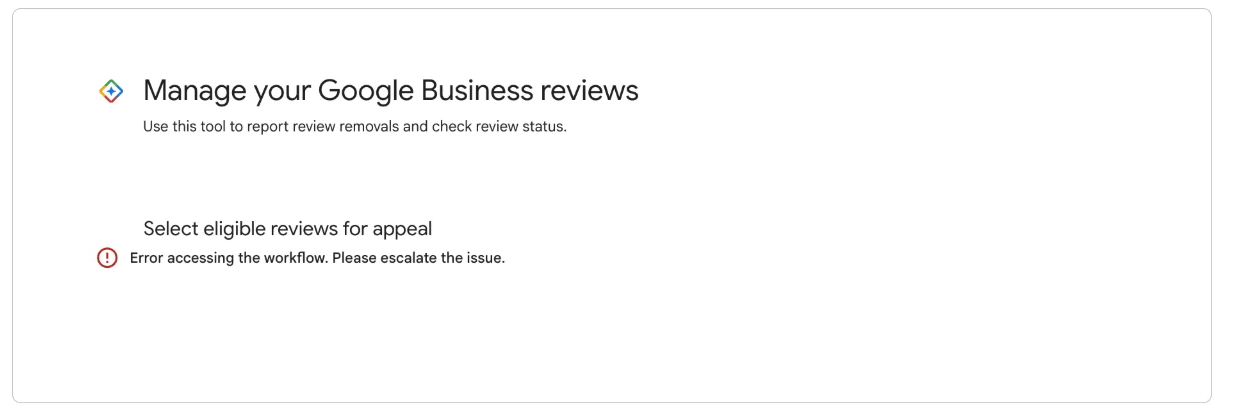
The message appears where the appeal list or form should be.
In our experience it is the appeal step that fails. Reporting new reviews through the same tool has generally kept working, which matters for what you do while you wait. If the tool itself is new to you, our guide to the Reviews Management Tool walks through each screen.
Who it affects, and whose fault it is
The error started appearing around July 2026. Since then we have seen it on every profile we manage, across different Google accounts, and owners in other places report the same message. It appears on reviews still waiting on a first decision, and on reviews that have already come back "Report reviewed, no policy violation" and should be ready to appeal.
It is a fault on Google's side, not a flag on your account. It does not mean your profile is under suspicion, that you have reported too many reviews, or that the review cannot be appealed. A review that is not eligible for appeal is simply listed as not eligible. It does not throw an error.
The wording, "Please escalate the issue", is the tool asking for a fix it cannot make itself. There is no button on the screen to do that, so escalating in practice means contacting Business Profile support, which we cover below.
What to try, in this order
These are the steps we use, easiest first. Each takes a couple of minutes.
- Come back later. The fault comes and goes. A review that errors in the morning often opens cleanly that evening or a few days later. If the appeal is not urgent, this alone often works.
- Use a private or incognito window. Your normal browser carries stored data from earlier visits to the tool. A private window starts clean. Sign in with the account that owns or manages the profile, and nothing else.
- Appeal one review at a time. The form accepts up to 10 reviews in a submission. Tick one eligible review, lodge that appeal, then start again for the next. A single-review submission gives the tool the least to trip over, and it keeps each case ID tied to one review in your records.
- Leave out anything still pending. A review marked Decision pending is not ready to appeal. Keep it out of your selection.
- Try a different browser. If Chrome fails, try Safari, Firefox or Edge, again signed in only to the managing account. If you are signed in to several Google accounts at once, sign out of the others first.
If any of these gets you to the form, lodge the appeal straight away while the session is working. That is much easier if your text is already written (more on that below), so you are not composing it against the clock.
When it lasts for days: open a Business Profile support case
If the error has blocked you for several days, across private windows and more than one browser, contact Google Business Profile support. The message is asking you to, and support can see things the tool does not show you.
Go to the Business Profile Help Centre (support.google.com/business) signed in as the owner or manager, and look for Contact us, usually at the foot of a help article. Choose the options closest to reviews and you are offered whatever contact routes your account has, which may be email, chat or a callback. The menus change from time to time, so pick whatever sits nearest to "reviews" or "appeals".
Keep the message short and factual. Include:
- The review. Its star rating, the date it was posted and its first line, so support can find it.
- The report date. When you reported it, and what the status now shows (usually "Report reviewed, no policy violation").
- The error. The exact words, "Error accessing the workflow. Please escalate the issue.", and the step where it appears.
- A screenshot of the error, plus one line on what you have already tried: a private window, one review at a time, a second browser.
- The ask. That they escalate the fault, or tell you another way to lodge the appeal.
Save the case number support gives you alongside the review in your records. Do not use the support case to argue the review itself. Support fixes access. The appeal is where the argument belongs, and it is judged separately.
What to do while you wait
A stuck appeal is not a reason to sit still. Three things are worth doing now.
Prepare the appeal text. Write both fields in a document: the policy name, and your why field with the reviewer's exact words in quotation marks. When the tool opens, you paste and submit in under a minute. What to write in a Google review appeal covers both fields, and the finished templates for every breach we file against are in The Google Review Removal Playbook.
Keep reporting other reviews. The error sits at the appeal step. First reports on other reviews that break a rule can still go in, and each one that comes back declined joins the list you will appeal once the tool is working. Go strongest first, a handful at a time. How to report a Google review as the business owner shows both routes.
Post your reply. If you have not replied publicly to the review you are trying to appeal, do it now. Keep it calm, short and about the experience, with a direct way to reach you, and leave out any mention of the report or the appeal. A reply works today, and if the review comes down later the reply goes with it. Our reply templates for negative reviews are a good starting point.
Appeals are still being won
The bug is irritating, but it has not stopped the process. We have lodged and won appeals throughout the period the error has been appearing, using the steps above.
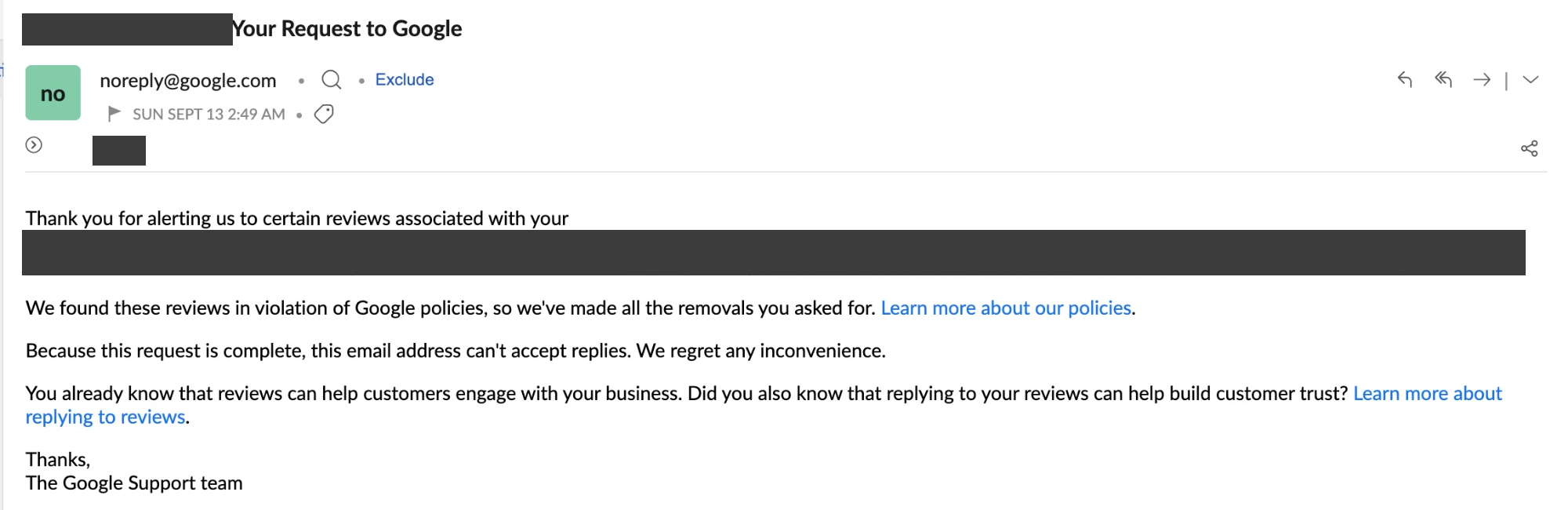
A decision from the bug period: our appeal on a review that called the business "scammers" was approved and the review removed.
That review came from a real customer, and its first report had been declined. The appeal went in once the tool let us through, and the approval arrived by email a short time later. How that appeal was argued is described in what to write in a Google review appeal, and how to appeal a Google review decision covers the full sequence from report to decision.
A delay at the appeal step does not cost you the appeal. Eligible reviews stay on the list while you wait, so the best use of a blocked day is to have your text written and your screenshot saved, ready for the moment the form opens.
Have your appeal ready when it opens
Write your appeal now with the playbook's templates, so when the tool lets you through you paste, submit and log the case ID.
Get the Playbook · $99Several locations or a group? Talk to us about a managed service · Popular locations: Sydney · Melbourne · Brisbane · Perth · Adelaide · Gold Coast · all locations